Guides · 4 steps
Keep backups off the server
Send every backup to another disk, a NAS or the cloud, so a broken SSD loses nothing.
Step 1
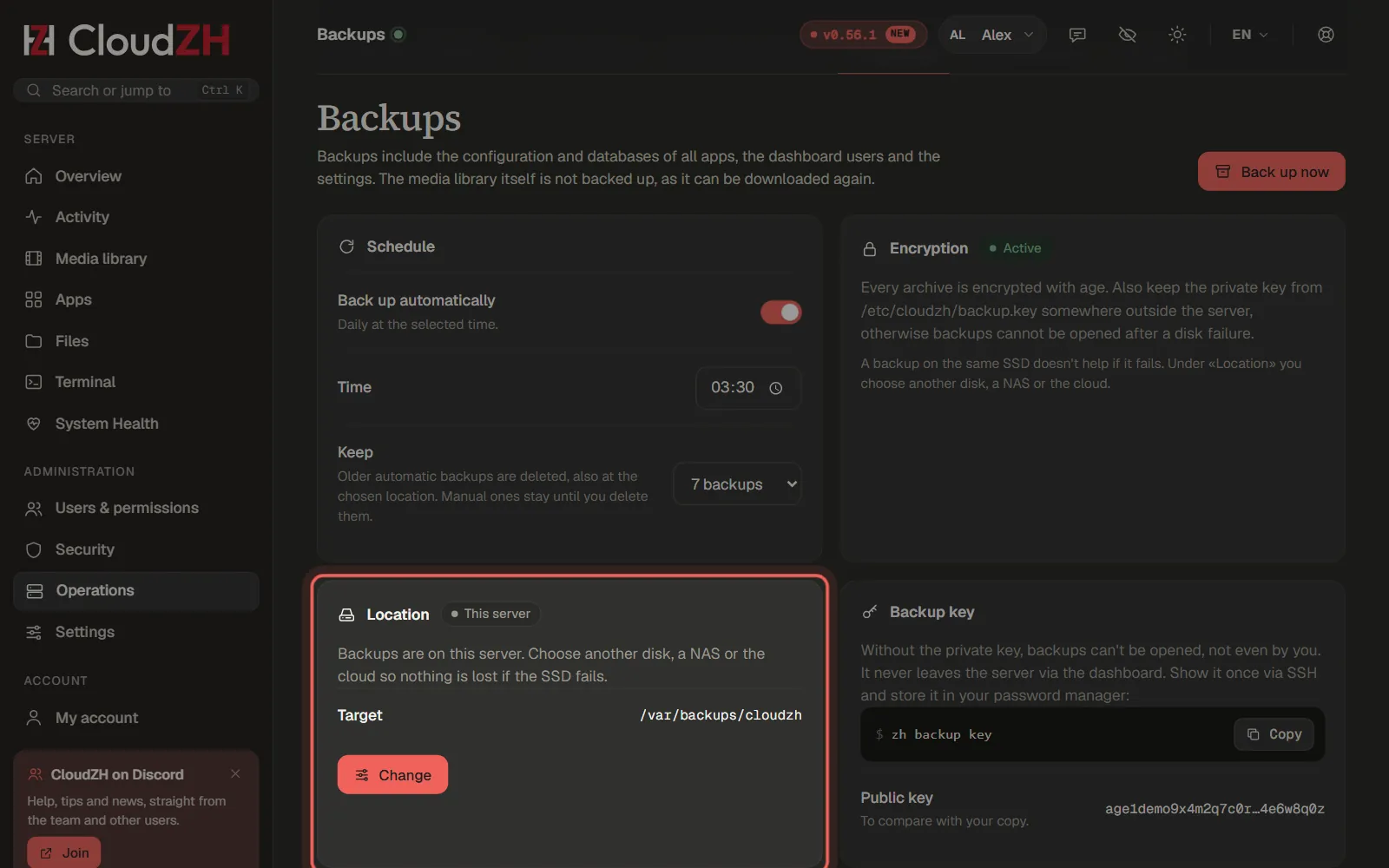
Open the backup location
Go to Operations → Backups. The card Location shows where backups are kept today. Click Change.
Step 2
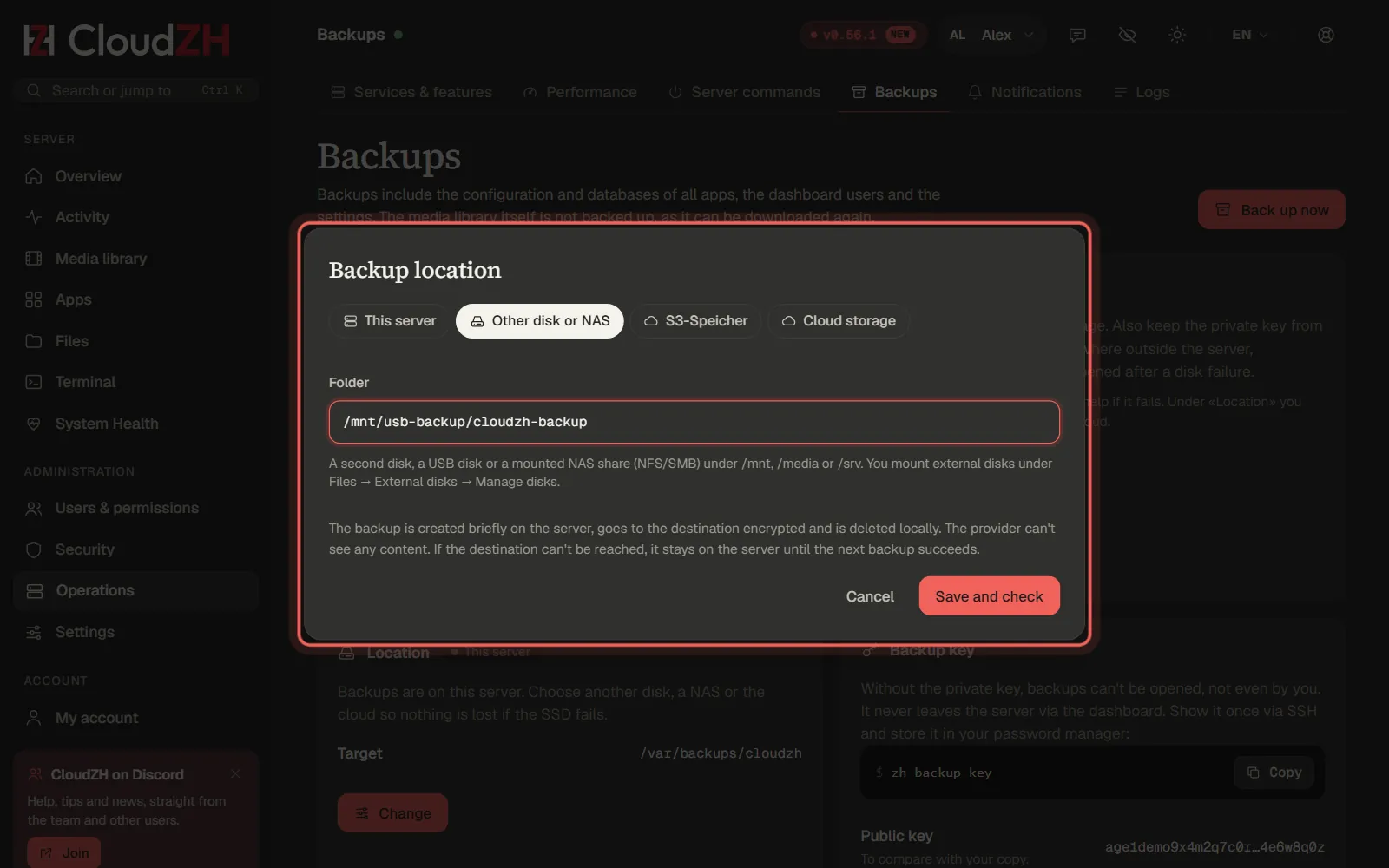
Choose the destination
Other disk or NAS works with every plan: a second disk, a USB disk or a mounted NAS share under /mnt, /media or /srv. S3 and cloud storage belong to CloudZH Pro.
Step 3
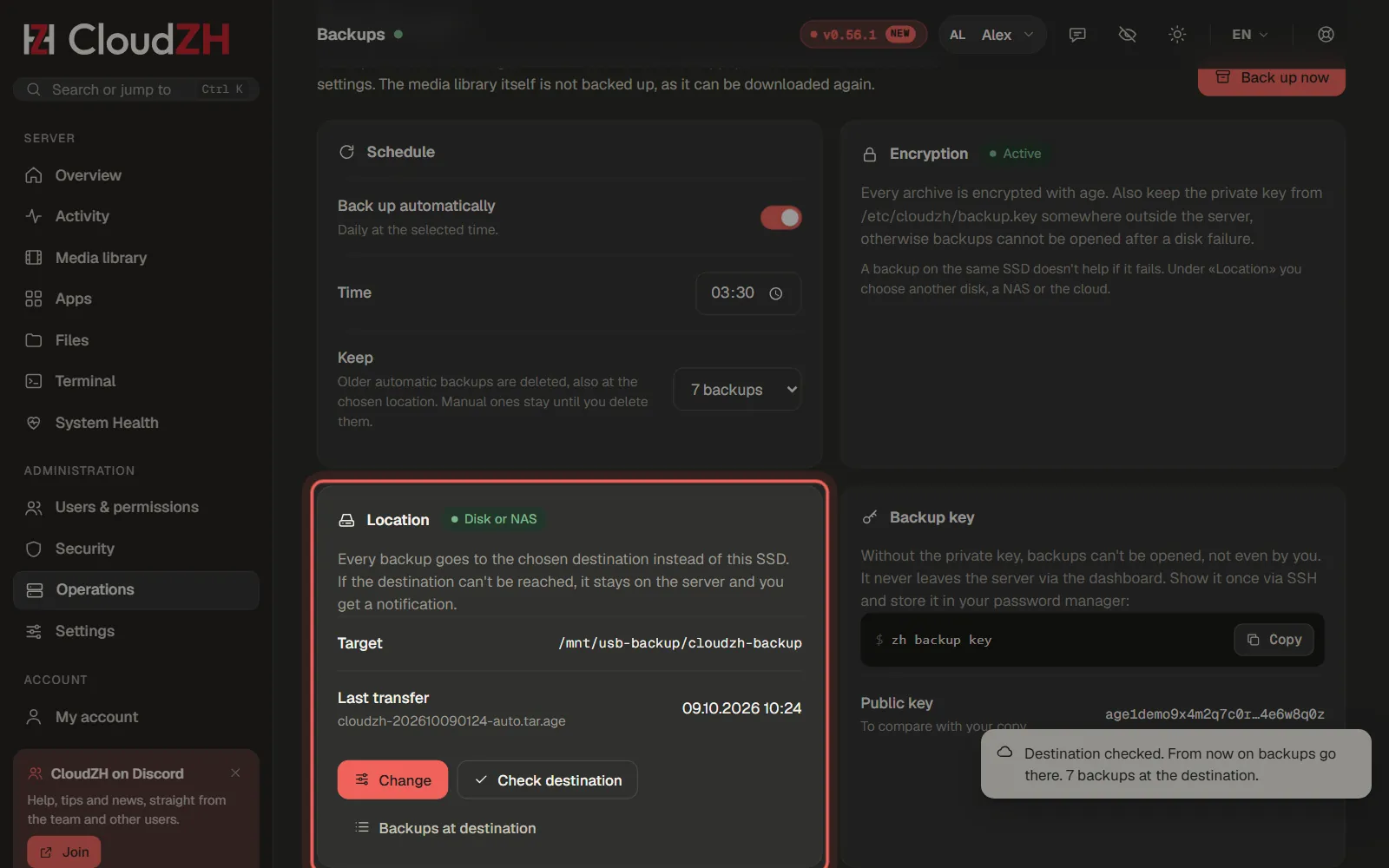
Save and check
Save and check writes a test file, reads it back and switches the destination on. From now on every backup goes there encrypted and is removed from the server. If the destination cannot be reached, the backup stays on the server and you get a notification.
Step 4
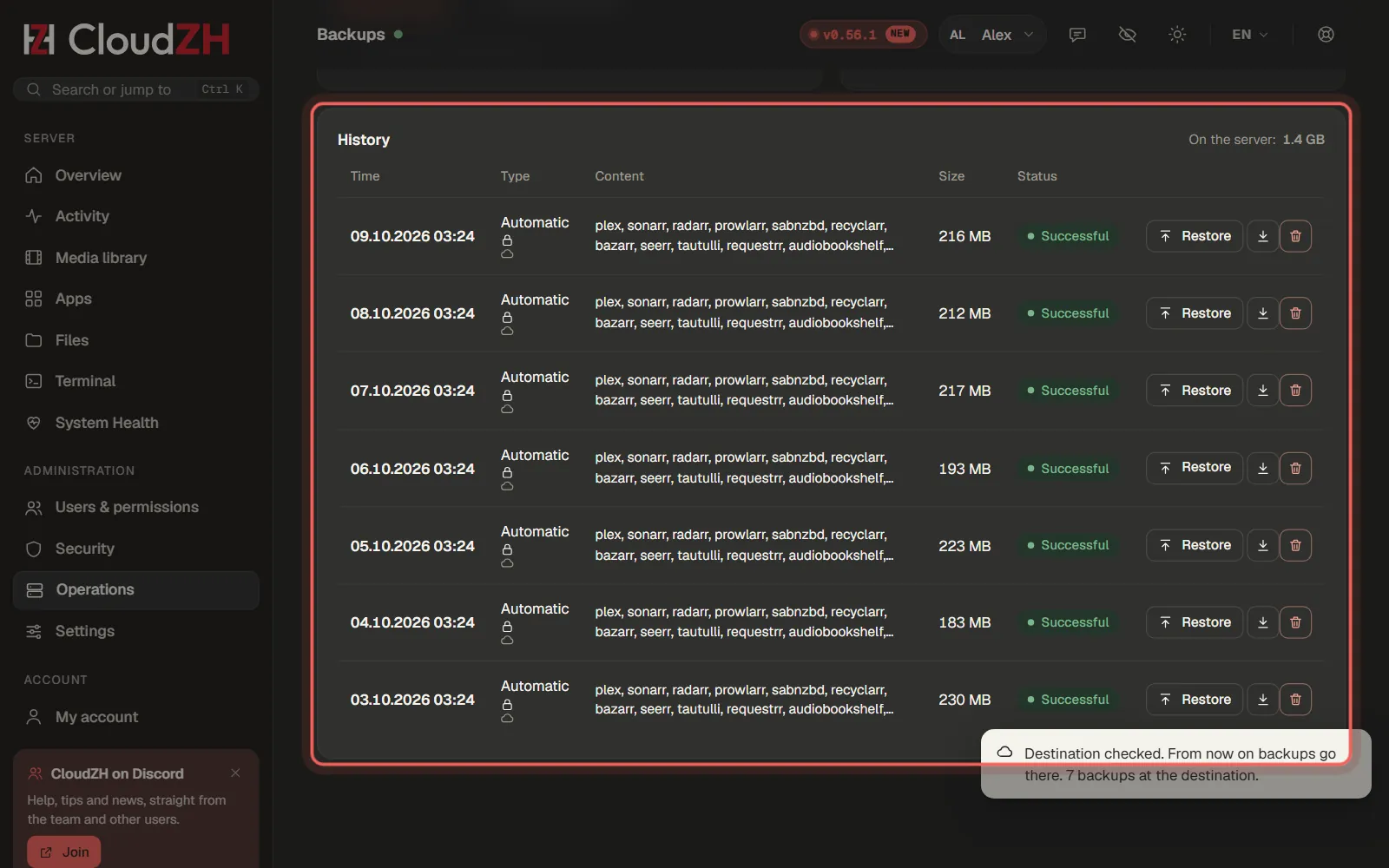
Restore from the destination
The History lists every backup, also those at the destination. Restore fetches the archive, checks its signature and restores apps and settings.
Pictures from CloudZH 0.56.1.