Guides · 4 steps
Invite family and friends
One link, the right permissions, and friends never touch your settings. More accounts than your own need CloudZH Pro.
Step 1
Create an invitation
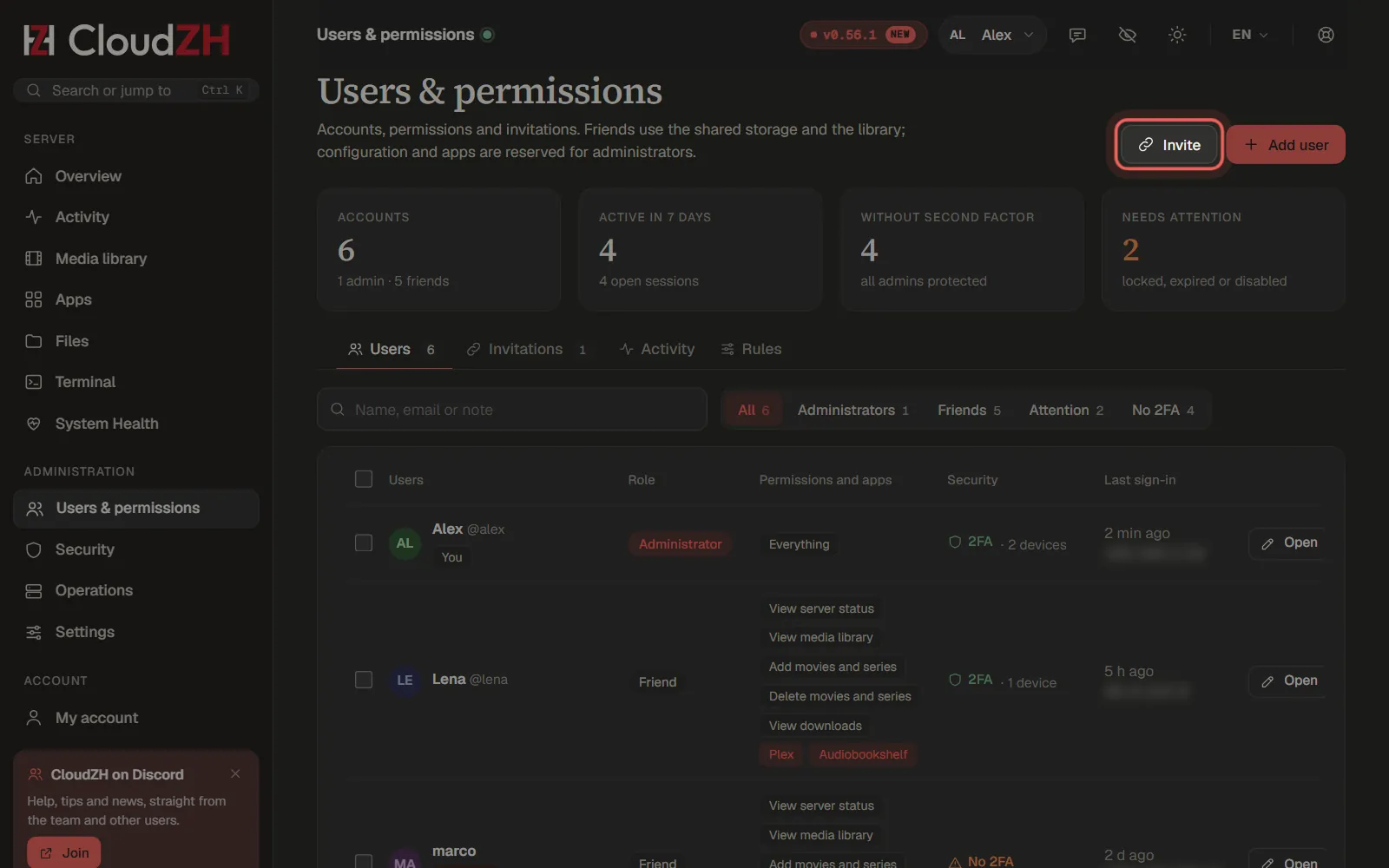
Open Users & permissions and click Invite. An invitation is a link; whoever opens it creates their own account.
Step 2
Choose what friends may do
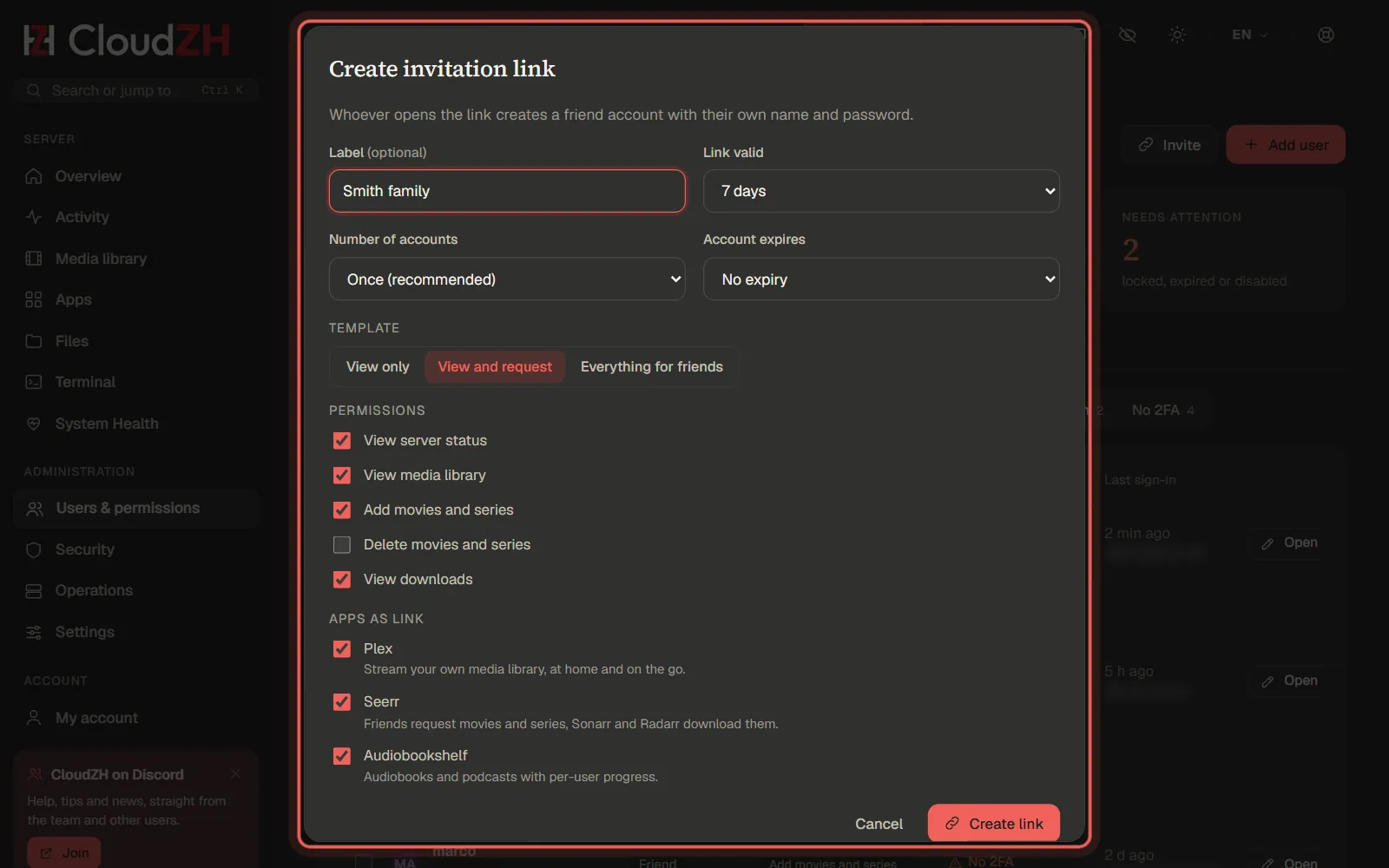
Set how long the link stays valid and how many accounts it may create. A template such as View and request sets the permissions; below it you choose which apps they see.
Step 3
Send the link
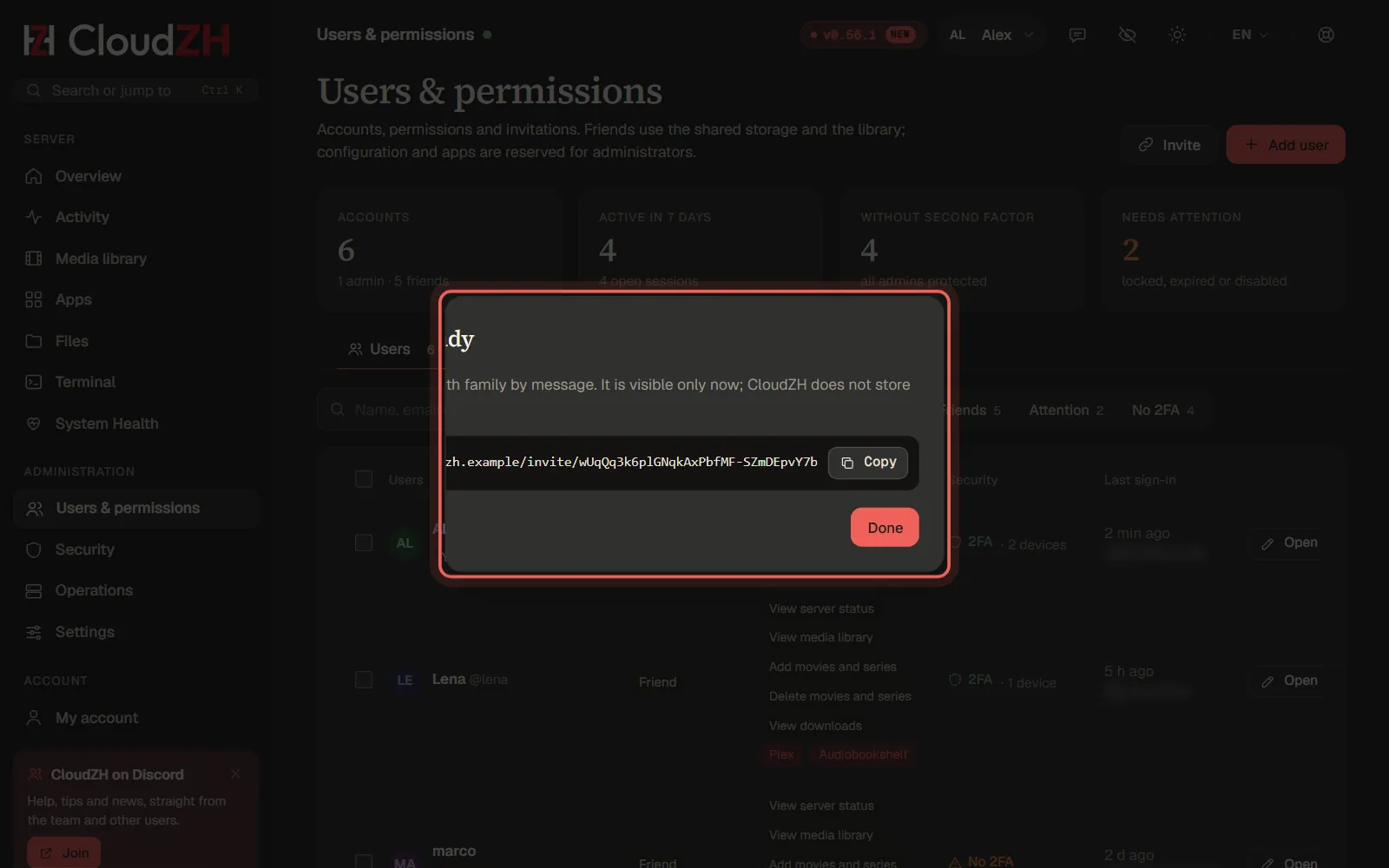
Create link creates the link. Copy it and send it by message or e-mail. Open invitations stay listed until they are used or expire.
Step 4
What friends see
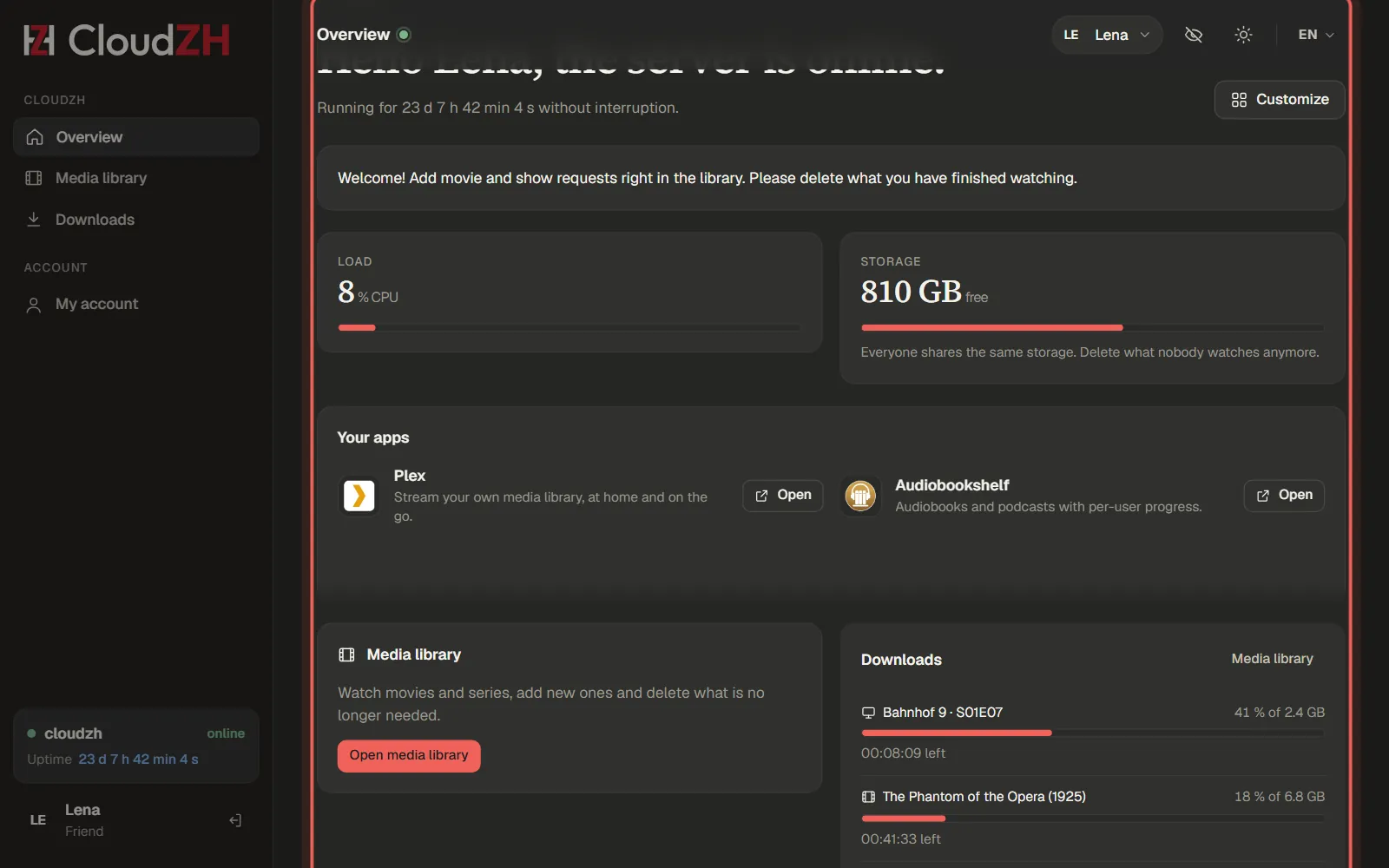
Friends get their own simple dashboard: the shared apps, the media library and, if you allow it, the server status. Settings, Sonarr and Radarr stay with you.
Pictures from CloudZH 0.56.1.